Why you can't pop out steam gauges in MSFS 2024, and what works instead
You can't pop out steam gauges in Microsoft Flight Simulator 2024. Only display instruments, such as the G1000, G3000 or EFB, are drawn as separate screens; analog gauges are part of the 3D cockpit model, so there is no window to detach. To get them on a second monitor, use software that draws the gauges from sim data.
Many people expect it to work, because on glass it does: hold Right Alt, click a G1000 screen, and it becomes a window you can drag to another monitor. Try the same on any gauge in a Cessna 152's six-pack and nothing pops out.
Why the sim can't pop out analog gauges
MSFS builds cockpit instruments in two different ways, and only one can become a window.
A display instrument, such as a PFD, an MFD, a GPS or the EFB tablet, is a small program that draws onto a screen in the cockpit. The sim already has that picture as a separate image, so it can also show it in a window. That window is the pop-out, and it holds only the screen. The buttons and knobs around it stay in the cockpit, and to use them you still have to go back to the cockpit view.
An analog gauge has no picture of its own, and neither does the rest of a classic panel, such as the autopilot's buttons or the radios' knobs. Microsoft's developer documentation says steam gauges are built as part of the cockpit model: the dial face is painted onto the 3D model, and the needle is a 3D part that the sim turns. Knobs and buttons are 3D parts in the same way. With no separate image, there is nothing to put in a window. At most, the small digital display of an autopilot or a radio may pop out, without the buttons around it. No setting changes this, and a pop-out manager can't change it either, because it only moves windows the sim has already made.
What works instead: draw the gauges from sim data
A program outside the sim can read the flight data and draw its own gauges on any monitor. That is the only way to get steam gauges onto a second monitor. Tools that do it include:
- PanelSight (paid, with a free trial) is plug and play for every aircraft it supports. It detects the airplane you load and draws a panel that matches the real one, colored arcs and redlines included, with nothing to set up. If the airplane also has a GPS, PanelSight pops out its screen and mounts it in the panel for you. It needs no extra hardware: its knobs are easy to turn with a mouse, because you scroll anywhere near a knob instead of aiming at it, and if you have a touchscreen, you can also turn them and press the buttons with your finger. It works best with the aircraft it supports, so check the supported aircraft for the planes you intend to fly.
- With Air Manager you can build almost any panel you want, and that is also its problem: for every aircraft you fly, you must find or build a panel, and building one means placing and sizing every instrument by hand. If the airplane has a GPS or any other screen, you also need a separate pop-out manager, and you line up each screen inside its drawn bezel yourself, once per aircraft. The pop-out manager remembers the result, but getting there is slow, careful work. Air Manager also costs more than PanelSight, and turning its drawn knobs with a mouse is awkward, so many people add a hardware knob sold by the same company.
- fsmapper (free) and SPAD.neXt (paid) can also show gauges, but with even more setup: in fsmapper you write the whole panel in code, and SPAD.neXt shows each gauge in its own small window that you arrange yourself.
Takeaway: if you want a panel built exactly your way, the extra cost and hours of setup may not bother you. If you want working gauges quickly, PanelSight is the most automated way to get them, for every aircraft it supports.
For the full comparison, glass aircraft included, see 3 ways to get an instrument panel on a second monitor.
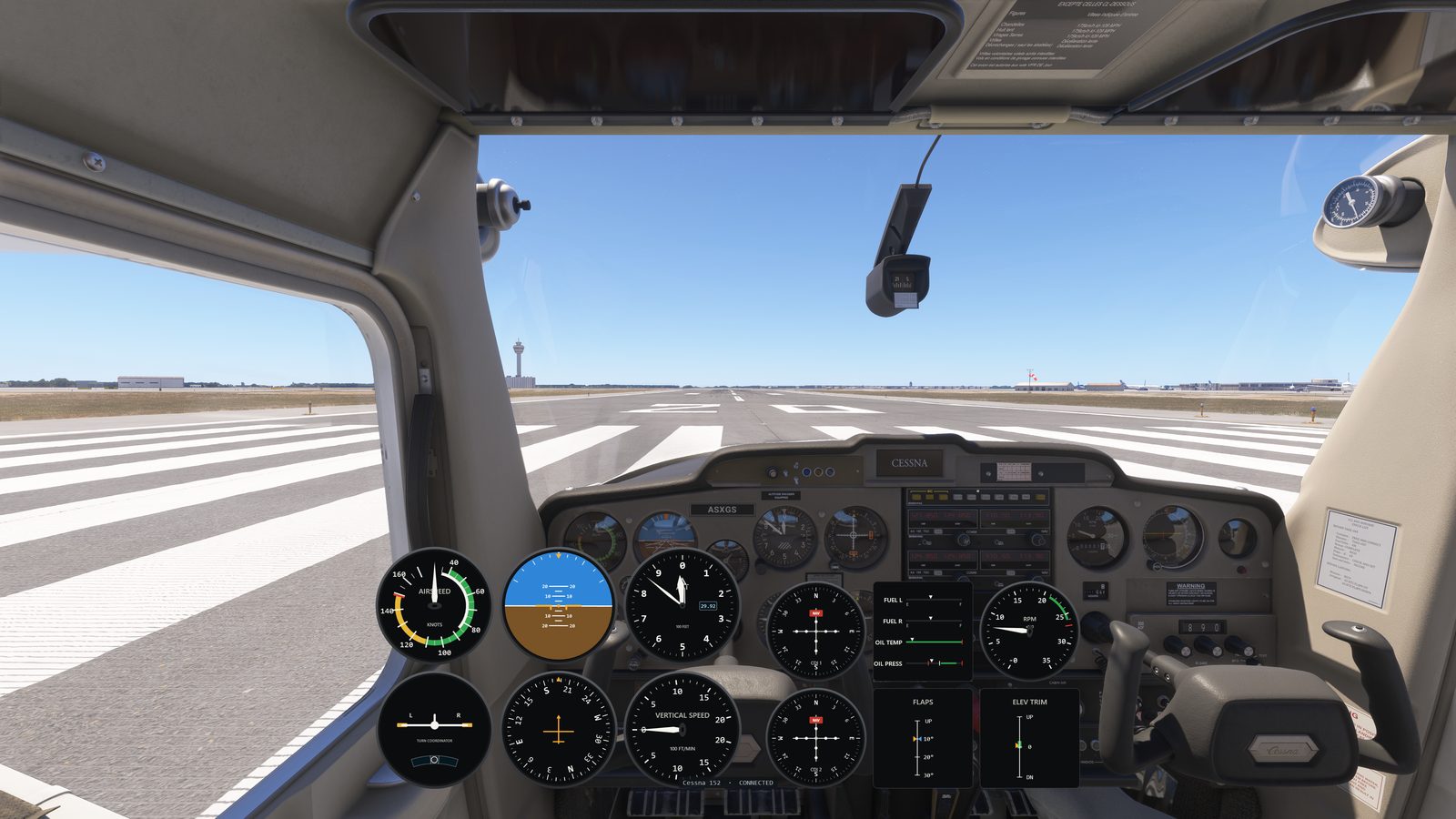
Steam-gauge aircraft PanelSight supports
As of this writing, PanelSight supports at least these steam-gauge aircraft in MSFS 2024, and draws the gauges that the sim can't pop out:
- AeroElvira Optica
- Air Tractor AT-802
- Cessna 152
- Cessna 185F Skywagon
- Curtiss JN-4 Jenny
- De Havilland DHC-2 Beaver
- Douglas DC-3
- Flight Design CTSL
- Icon A5
- Magni Gyro M24 Orion
- North American P-51D Mustang
- North American T-6 Texan
- Robin CAP 10
- Robin DR400
- Zivko Edge 540
- Zlin Savage Cub
A few of these, such as the DHC-2 Beaver, also have a GPS. Its screen pops out like any other display, but the dials around it still don't. PanelSight also supports glass cockpit aircraft, such as the Cessna 172, the TBM 930 and the Pilatus PC-12. See the full list of supported aircraft.
Found something wrong or out of date in this article? Please let us know at contact@panelsight.net.
Try it on a steam-gauge airplane
PanelSight draws the round dials for every analog aircraft it supports, on a spare monitor or as an overlay over the sim view, with nothing to set up. The free 7-day trial includes every aircraft and feature, and needs no payment details. The Cessna 172 overlay is free forever.
Download the free trial