Turning cockpit knobs in MSFS 2024 without fighting the mouse
You're on final approach in Microsoft Flight Simulator 2024, you reach over to tune the radio, and the view zooms out. The pointer had drifted a few pixels off the knob, so the wheel went to the camera instead. Now you're playing with the camera when you meant to be flying the approach.
Nothing about your setup is broken or misconfigured. It follows from the way the sim works out which cockpit control your pointer is on, and it happens to anyone who adjusts an instrument with the mouse wheel while flying. This article goes through what actually helps, and why the answer for most people is a screen they already own. If you are in a hurry and only want the recommendation, skip to which setup to pick.
Why the wheel zooms when you meant to tune
Every control in the cockpit has a hotspot around it, an invisible area your pointer has to be inside before the sim will act on that control. When the pointer is inside it, the wheel turns the knob. When it isn't, the same wheel zooms the camera, and nothing warns you that you've crossed from one to the other. Sometimes your hand moved. Often it didn't but the airplane did, because the cockpit shifts about in flight and slides out from under a pointer you left exactly where it was.
None of this would matter much if the targets were big. A course knob is only a few dozen pixels across from a normal seating position, and it gets smaller every time you zoom out or pull the camera back for a better look at the runway.
Click and turn instead of scrolling
There is no setting that makes this go away, but there is a way to turn a knob without using the wheel. Press and hold the mouse button on a control, then move the mouse to turn it. Since the wheel is never used, the view stays where it is. That works because the sim keeps hold of a control once the pointer is on it, which is what the default Cockpit Interaction System does — if yours has been set to Legacy at some point, it's under General → Flight Interface and that's the one to change back.
It works well enough for a coarse change, where you only need to get roughly where you want. Precision is what suffers. A scroll wheel has detents, so each click is one step you can feel without looking down, and landing on an exact frequency or altitude is a matter of counting them; moving the mouse is smooth, gives you nothing to count, and leaves you creeping up on the number while you watch the display. Long turns are awkward as well, since winding an altitude selector from 3,000 up to 12,000 feet means moving the mouse until you run out of desk, letting go and taking hold again. The wheel is the better tool on both counts, and the wheel is the part you can't trust.
None of it changes the basic problem, which is that you're aiming a pointer at a small target on the screen you're trying to fly by. The usual next step is to move the instruments off that screen entirely.
So what turns the knobs on the second screen?
A pop-out window won't do it on its own: that's just the display, with no bezel and nothing to click. So a second screen usually means running a panel manager as well. Air Manager and its equivalents draw the whole panel, bezel included, which puts the knobs on the same screen as the instrument they work. There's more on those options in 3 ways to get an instrument panel on a second monitor.
That's a real improvement, but you still work the knobs with the mouse, pointing at a small drawn one on a screen you weren't looking at, so the aiming problem has moved rather than gone.
That's why the advice you'll find is almost always a panel program together with a Knobster: a single knob on a small box that sits next to the keyboard, sold as the hardware half of a software panel. Look closely at what that buys, though. It supplies the turning, not the aiming — you still pick the knob you want on screen with the mouse, and the box then turns whichever one is selected. The pointing that caused the trouble is untouched, and you've paid €95 on top of the panel software to keep it.
PanelSight: software knobs that work
Turning a rotary on glass is awkward when the knob is drawn small and the software wants you to catch its exact edge, which is the same pixel-hunting as before with a fatter pointer. It's a design problem rather than something built into touchscreens, and it's the one PanelSight set out to solve. We went through everything that makes a knob on a screen worse than a knob on a desk, and built the panel around fixing it. Five things carry most of the weight, and together we think they get a drawn knob about as close as it gets to one you can hold.
A target bigger than the knob. Every knob sits inside a generous rotation area, so you turn it by acting anywhere near it instead of catching its edge. There's no need to be accurate at the moment you can least afford to be. That area works both ways. With a mouse, leave the pointer anywhere inside it and roll the wheel — you never have to be on the knob itself. On a touchscreen, put a finger anywhere inside it and turn. It behaves the same on a spare monitor and on the overlay, which pins the panel over the sim view when one screen is all you have.
Your hand, straight onto the glass. The rest of the panel takes a finger the same way: press the buttons, scroll the lists and the maps, all of it directly, as you would in the aircraft. Nothing to aim at, and nothing to select first.
A click for every step. The knobs sound as they turn, so you can hear how far you've gone and keep your attention on the windscreen. It isn't a detent under your finger, but it does a detent's job.
Dedicated buttons for fine adjustment. Every knob has a plus and a minus beside it, each worth one increment. Tap once and the value moves one step, so a frequency or an altitude arrives where you meant it rather than a few clicks past. Landing on an exact value is what detents are for, and here you get it without one.
The right knobs, with nothing to set up. The panel follows the aircraft, so what's on screen is what the airplane you loaded actually has: a G1000 bezel in the Cessna 172, an analog radio stack in something older. Twenty-eight aircraft as of this writing, and no configuration per plane. No piece of hardware can do that, because one screen becomes whatever panel you just loaded. See how the second-screen panels work.
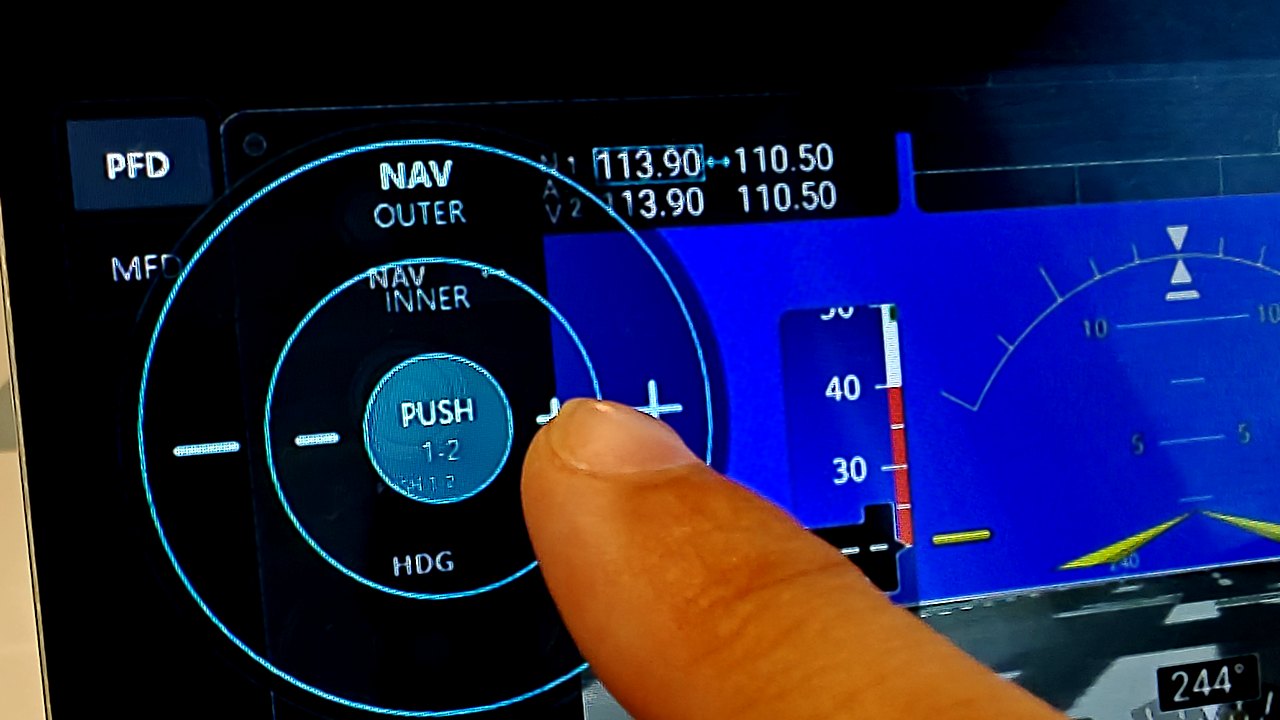
Takeaway: a rotation area around every knob so you never have to be precise about where you grab it, a sound for every step, dedicated buttons for fine adjustment, and the right panel for whatever you loaded — on a spare monitor or on the overlay, for every aircraft PanelSight supports rather than one set of avionics.
What about hardware knobs?
The one thing a screen can't do is put something under your finger. The sounds and the step controls cover most of what detents were for, but you still look at the panel to find the knob, and a knob on the desk doesn't ask that of you. If you fly one aircraft constantly and want to reach for the heading bug without taking your eyes off the windscreen, hardware is better for that knob, and no amount of software design changes it.
What hardware won't do is cover the rest of the panel. A Honeycomb Bravo, about $250 and usually bought for its levers, gives you a knob for five autopilot values and leaves the radios, the transponder and the baro setting where they were. A Knobster is €95 on top of the panel software you needed anyway. An Octavi IFR-1 is roughly $175–$220 for a fixed set of functions, and anything not on the box goes back to the mouse. A full replica bezel suite runs from about $1,700 to €3,300, is built for one avionics family, and often costs more than the rest of the setup put together. (Prices are as of September 2026 and vary by retailer and region.) For comparison, software that draws the whole panel, on every aircraft it supports, costs less than the cheapest item on that list.
So the case for buying is a narrow one: a single aircraft, flown often enough to build muscle memory, and a handful of controls you reach for constantly. Otherwise you are spending a few hundred euros to improve five controls out of forty, and leaving the other thirty-five exactly as they were.
Which setup should you pick?
1. Stock MSFS, with the mouse. Free and already installed. Instead of scrolling, press and hold on a control and move the mouse: the knob turns, and the view can't zoom because the wheel is never touched. The cost is that you've given the wheel up. There are no detents to count, exact values are fiddly, and a long turn runs out of desk. It's making do rather than fixing anything, and you feel it every time you reach for a knob.
2. PanelSight, with the mouse. A considerable step up, with no hardware to buy. Everything the first option gives up, this gives back. The wheel works again, because every knob has a rotation area around it: leave the pointer anywhere near the knob and roll, with no edge to catch and no zoom when you miss. The detents come back as sound, one click per step. The plus and minus buttons beside each knob land you on an exact frequency or altitude, which click and turn never could. And the panel is the right one for whatever aircraft you loaded, on a spare monitor or as an overlay on your only screen.
3. PanelSight, on a touchscreen. The sweet spot for most people: the same panel again, with the pointer gone altogether. Turn the knobs, press the buttons and scroll the maps with a hand, the way you would in the aircraft — nothing to aim at, and nothing to select first. Any spare touch monitor or an old tablet will do, and it is the closest this gets to sitting in a cockpit.
4. Hardware knobs. The most expensive answer, and the one that covers least. It's a real case if you fly a single aircraft constantly and want the heading bug under your hand — nothing on a screen gives you that. Just know what you're buying: it never covers more than the controls it physically has, it doesn't replace the panel underneath, and it costs more than the software that does cover the rest.
That's what the rotation areas, the sounds and the step buttons are for. With PanelSight, you don't need to buy a knob.
Try it with your own hands
PanelSight draws your aircraft's panel on a spare monitor, or as an overlay over the sim view, with knobs you can turn by finger or scroll wheel and no add-on hardware. The free 7-day trial covers every aircraft and feature and needs no payment details. The Cessna 172 overlay is free forever.
Download the free trial